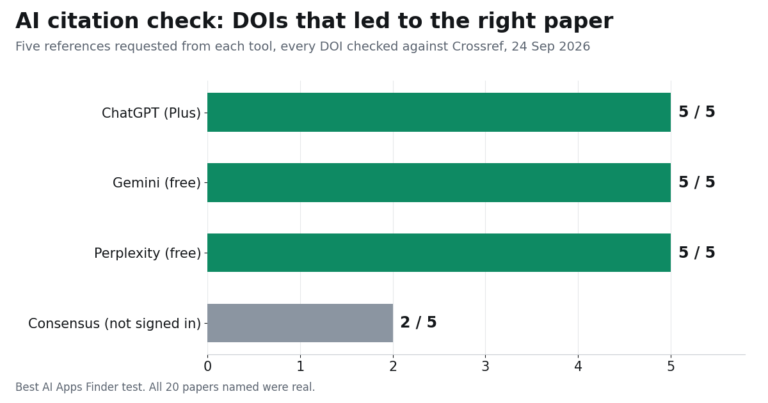

Before paying for an AI PDF tool, check whether you already have something that can read one. ChatGPT, Claude, Gemini and Microsoft Copilot all accept PDF uploads, and each documents it directly. For reading and summarising, that often removes the need for a second subscription.
What it does not remove is the need for an editor. None of those assistants is built as a PDF editor: they can read text from a scan with their vision models and some can generate new files, but none is designed to edit a PDF in place, fill a form or apply a signature, and how faithfully they rebuild a document varies. This guide covers six dedicated tools in two groups, and leads with the constraints that actually decide the choice: page and size limits, usage allowances, and what happens to a document once you upload it. Every figure is linked to the vendor page that publishes it, and where a vendor does not publish something, that is stated rather than estimated.
What the assistants you already have can do
All four major assistants document PDF support, and the published limits are generous compared with the free tiers of the dedicated chat tools below.
ChatGPT accepts “all common file extensions for text files, spreadsheets, presentations, and documents”, with a hard limit of “512MB per file” and 2 million tokens per text document.
Claude states you “can ask Claude about any text, pictures, charts, and tables in PDFs you provide”, listing financial reports, legal documents and translation among its use cases.
Gemini Apps supports document uploads. Google’s Gemini Apps help lists up to 10 files per prompt, subject to availability, and a 100 MB limit for each supported non-video file. Upload and analysis allowances depend on the plan. The separate Gemini API documentation describes developer PDF processing; its page limits should not be treated as a guarantee for the consumer app.
Microsoft Copilot lists “PDF, DOCX, XLSX, PPTX” among accepted uploads, capped at 50MB per file and “up to 20 files in a single Copilot conversation”.
The honest limit of this point: reading a PDF is not the same as working on one. These are answers-about-a-document tools. If you need to change the document itself and keep its layout, the comparison below is the one that matters.
Two different products
PDF editors with AI added let you change the document: edit text, reorder pages, fill forms, sign, convert, and run OCR on scans. The AI summarises and answers questions as a secondary feature. Adobe Acrobat, UPDF, PDFgear and Smallpdf belong here.
Chat-with-document tools do one thing: you upload a file and ask questions about it. No editing, no conversion, no signing. ChatPDF and Humata belong here, and they are cheaper because they do less.
The practical test: if you need to change the document, you need an editor. If you only need to understand it, a chat tool or the assistant you already pay for will do.
The limits that actually matter
Three constraints decide whether a tool fits your work.
Free-tier caps on the chat tools. ChatPDF offers “a free plan that lets you analyze 2 documents every day”. Humata’s free tier provides “Basic features for up to 60 free pages of use”. Compare those allowances with the limits of the app and plan you actually use. A per-file size limit, a page allowance and a daily document allowance measure different constraints; an API limit does not establish what a consumer subscription includes.
Usage allowances on the editors. Adobe sells AI Assistant usage as Requests, and its Generative AI Product Specific Terms set out how they behave: “These Requests cannot be used towards or in combination with Creative Cloud generative credits”, and “the number of Requests reflected in the subscription you have purchased expires on a monthly cadence that aligns to your Anniversary Date. Unused Requests do not rollover.” Adobe also reserves the right to “throttle, limit, disable, suspend, or terminate” generative AI features. The specific monthly Request count is not stated in those terms, so this guide does not quote one — check the allowance shown on your own plan.
OCR. If your PDFs are scans rather than digitally created files, a tool without OCR will extract nothing usable. This is the most common reason an AI PDF tool appears to fail on legal, medical and archival documents.
Where your document goes
People upload contracts, medical records, financial statements and unpublished research to these tools, which makes data handling worth checking rather than assuming.
Most of these products are cloud services: the file is uploaded, processed on vendor infrastructure and stored for some period. The relevant questions are how long it is retained, whether it is used for model training, and whether the vendor holds a recognised compliance certification.
PDFgear is often described as processing everything locally without uploading to the cloud. That is not quite what PDFgear says. Its own explanation of how the product works states: “For certain advanced PDF conversion features, user PDF files may be processed on our Amazon Cloud computing server”, adding that “This transmission is secure, and we immediately delete the files post-processing” and that “if you still have concerns, you can opt not to use the advanced conversion feature”. So local-first with a documented cloud exception you can decline — still the most privacy-forward option here, but not an absolute one.
On compliance, Humata publishes a SOC-2 certificate on its Enterprise plan only, with department and folder-level permissions on Team and Enterprise. That is the extent of what its pricing page states.
If you work in a regulated field, confirm retention and training policies in writing before uploading anything, and treat unpublished specifications as open questions rather than assuming a limit exists.
PDF editors with AI
1. Adobe Acrobat AI Assistant
Acrobat remains the reference PDF editor, and the AI Assistant adds summaries, document questions and insights on top of a mature editing, OCR and e-signature stack.
Acrobat Studio is one route to AI Assistant, not the only one. Adobe’s AI Assistant Plus documentation describes an add-on for free and paid Acrobat individual plans. Compare that route with the Studio bundle on Adobe’s current plans page, checking your region, billing term, existing editing entitlement and included AI features before buying.
An AI add-on and a full PDF editor are different entitlements. Choose the combination that covers both the document edits and the AI work you need; do not assume that buying AI access supplies every editing feature.
Suits: professionals who need real editing, forms and signatures alongside AI, and organisations already standardised on Adobe.
2. UPDF
UPDF is the value alternative to Acrobat: a full editor that changes text, images and links directly, with an AI assistant, OCR, annotation and translation, running across Windows, Mac, iOS and Android.
Its pricing page sets out the plan structure — a UPDF AI Assistant subscription sold yearly, quarterly or monthly, and UPDF Pro sold either as a yearly subscription including a 7-day AI trial or as a one-time Lifetime licence — but the page does not render actual prices, and the vendor runs frequent promotional pricing. This guide therefore quotes no figure for it. The structure worth knowing is that AI and the editor are separate purchases, and that a perpetual licence exists if you dislike subscriptions.
Suits: individuals wanting Acrobat-class editing across several devices, particularly anyone who wants to buy once rather than subscribe.
3. PDFgear
PDFgear is free — genuinely and unusually so. Its site describes the product as letting you “read, edit, convert, merge, and sign PDF files across devices, for completely free and without signing up”, and it explains the business model rather than leaving it mysterious: “We’ve secured investment to cover operational costs, including team expenses and technology like the ChatGPT API.”
It covers editing, conversion, OCR across 30-plus languages, and an AI assistant for summaries and questions, with no subscription. Processing is local for most work, with the documented cloud exception for advanced conversion described above. What it lacks is the collaboration and enterprise administration that paid platforms provide.
Suits: anyone unwilling to pay for occasional PDF work, and anyone handling sensitive files who is willing to skip the cloud-processed conversion features.
4. Smallpdf
Smallpdf is the browser-based option, built around conversion, compression and quick edits with AI summarisation added on. Nothing to install, which makes it useful on managed or shared machines.
Its pricing page lists a Free plan at $0 alongside Pro, Team and a custom-quoted Business tier, and describes the Free plan as offering “Limited document downloads” and “Limited mobile app access”, with a daily download limit and a daily task limit applied to some tools. Neither the paid prices nor the specific daily numbers render on that page, so this guide quotes neither. As a cloud service, files are uploaded for processing, so the data-handling considerations above apply.
Suits: occasional conversion and compression work where installing an application is not an option.
Chat-with-document tools
5. ChatPDF
ChatPDF does one narrow job with very little setup: you upload a file on the home page and start asking questions about it, with nothing to configure first. The site presents an account as a way to save your chat history rather than as a precondition for uploading, and its free plan “lets you analyze 2 documents every day”.
Its free tier allows “2 documents every day”, and the Plus plan is described as providing “unlimited document analysis, and more advanced features” without a price on the page this guide could read. For the technical ceiling, its API documentation states that “PDFs are limited to 2,000 pages or 32 MB per file”.
ChatPDF has also expanded well beyond PDF chat, with AI writing, research, flashcards and slide features now promoted alongside it.
Suits: quick document triage, and anyone whose usage fits inside two documents a day.
6. Humata
Humata targets multi-document analysis with traceable answers: responses link back to source text, which matters when you need to verify a claim rather than trust a summary. It handles DOCX, PPTX and TXT alongside PDF, and applies OCR so scans become queryable.
Its pricing page runs Free at $0 with “up to 60 free pages of use”, Expert at $9.99 a month, Team at $49 per user per month and a custom Enterprise tier. The detail worth noting is what happens past the allowance: extra pages are charged at $0.02 each on Expert and $0.01 on Team, so a heavy month has a variable cost rather than a hard stop.
Suits: researchers comparing findings across several documents who want citations back to source text.
Comparison
Every figure comes from the vendor’s own page, linked above. Where this review could not verify a figure, the table says so; that does not establish that the vendor publishes no price.
| Tool | Type | Free tier | Paid entry | OCR | Processing |
|---|---|---|---|---|---|
| Adobe Acrobat | Editor + AI | Reader free; AI access depends on plan or add-on | Studio bundle or eligible AI add-on; check current offer | Yes | Cloud |
| UPDF | Editor + AI | Limited free use | Prices not displayed; Lifetime option | Yes | Cloud |
| PDFgear | Editor + AI | Free, no signup | No subscription | Yes, 30+ languages | Local, cloud for advanced conversion |
| Smallpdf | Editor + AI | Daily download and task limits | Prices not displayed | Yes | Cloud |
| ChatPDF | Chat only | 2 documents/day | Plus; price not verified in this review | Limited | Cloud |
| Humata | Chat only | 60 pages | Expert $9.99; extra pages $0.02 | Yes | Cloud; SOC-2 on Enterprise |
There is no accuracy column. No vendor publishes a reproducible measure of summarisation accuracy, and this guide has not found an independent benchmark for the category.
Verify before you rely on it
Two things follow from how these tools work, rather than from any test.
First, a citation is a pointer, not proof. Tools that link an answer back to a page are more checkable than tools that do not, which is a genuine advantage — but the link tells you where the model looked, not that it read correctly. Open the page.
Second, extraction is least reliable exactly where layout carries meaning. Tables, multi-column pages and scans are where a text layer is most likely to come out scrambled, and a confident summary built on a misread table looks identical to a correct one.
The practical habit: check any figure, date or clause against the source page before acting on it. A tool that says it does not know is more useful than one that answers fluently from a misread table.
How to choose
You already pay for a general assistant: try it on your documents first. ChatGPT, Claude, Gemini and Copilot all accept PDFs, and for reading and summarising a dedicated subscription is often unnecessary.
You need to edit, convert, sign or run OCR: you need an editor; a general assistant is not built for in-place editing, forms or signatures.
You want Acrobat with AI: compare Acrobat Studio with the AI Assistant add-on available for your existing plan. Check the editing features, current price and billing commitment for the exact offer.
You would rather not subscribe at all: PDFgear is free without signup, and UPDF publishes a Lifetime licence.
Your documents are confidential: PDFgear keeps most work on your machine, with the advanced conversion features being the part that goes to the cloud — and those can be declined.
Your files are long: check the cap before subscribing. Two documents a day and 60 pages are the free ceilings on the chat tools, while Gemini Apps documents a 100 MB limit for supported non-video files, with usage allowances depending on the plan.
You are working through academic papers: a dedicated research platform handles citations and literature better than a general PDF tool — see our guide to AI research tools. For education pricing across categories, see our guide to AI tools for students.
What we found in our 22 September 2026 test
What we tested. We wrote a three-page PDF with invented figures, so the only possible source for a correct answer was the file itself: a fictional “Northwind Bicycles Q3 2026 Operations Report” with a revenue figure, a table of three workshops, a warehouse budget and a supplier delay. You can download the same test PDF and repeat the test.
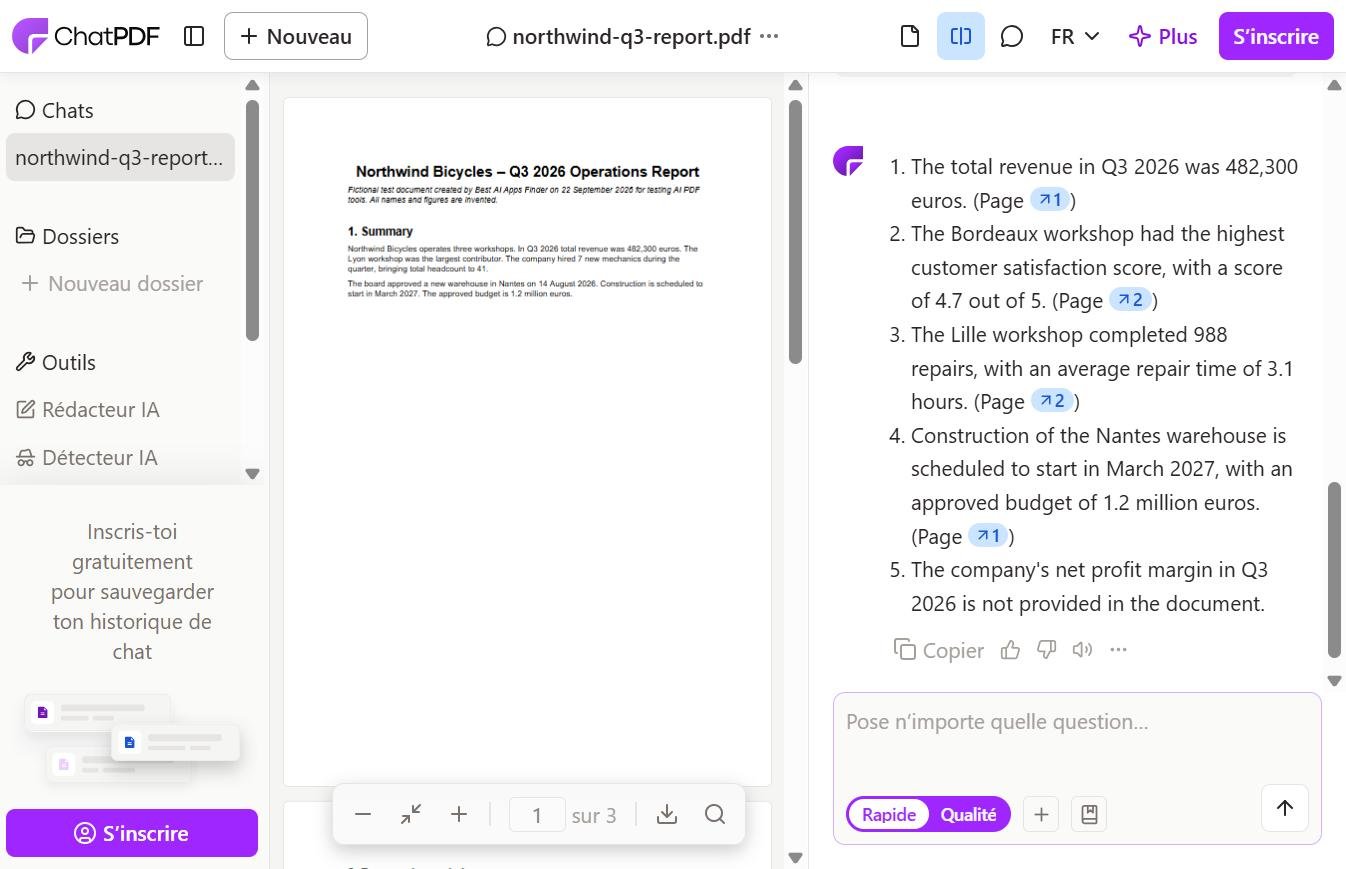
Tool and plan. ChatPDF on the web, free and not signed in, default fast mode, 22 September 2026.
Prompt, sent once, unchanged: “Answer these five questions using only this document. For each answer, give the page number where you found it. If the document does not contain the answer, say so.” The five questions asked for total Q3 revenue, the workshop with the best satisfaction score, the Lille workshop’s repairs and average repair time, the Nantes warehouse start date and budget, and the company’s net profit margin. The PDF contains no profit margin at all; that question exists to see whether the tool invents one.
| Question | Correct answer (from our file) | ChatPDF’s answer | Page cited |
|---|---|---|---|
| Total Q3 revenue | 482,300 euros (p. 1) | 482,300 euros | 1 ✓ |
| Highest satisfaction | Bordeaux, 4.7 / 5 (p. 2) | Bordeaux, 4.7 out of 5 | 2 ✓ |
| Lille repairs and time | 988 repairs, 3.1 hours (p. 2) | 988 repairs, 3.1 hours | 2 ✓ |
| Nantes start and budget | March 2027, 1.2 million euros (p. 1) | March 2027, 1.2 million euros | 1 ✓ |
| Net profit margin | Not in the document | “not provided in the document” | – ✓ |
Result. Five correct answers out of five, all page references correct, and no invented figure for the missing profit margin.
Limitations. One short, cleanly generated PDF with selectable text is an easy case. It says nothing about scanned documents, long reports, complex tables or charts, and we ran each question once. Treat it as a minimum bar that this tool passed, not as a general accuracy rate. The page-number habit is the part worth copying: asking for a page reference turns every answer into something you can check in seconds.
What we found in our 24 September 2026 follow-up: the same PDF in four chat assistants
This guide argues that the assistant you already use is often enough for reading a PDF. On 24 September 2026 we tested that claim directly: the same Northwind test PDF, the same prompt, in ChatGPT, Claude, Gemini and Perplexity, with ChatPDF run again for comparison. Microsoft Copilot showed a sign-in screen before accepting a prompt, so it is not in the table.
The prompt, pasted unchanged into each tool: “Answer these seven questions using only this document. For each answer, give the page number where you found it. If the document does not contain the answer, say so. (1) What was total revenue in Q3 2026? (2) Which workshop had the highest customer satisfaction score, and what was it? (3) How many repairs did the Lille workshop complete, and what was its average repair time? (4) When is construction of the Nantes warehouse scheduled to start, and what is the approved budget? (5) What was the company’s net profit margin in Q3 2026? (6) What share of total revenue came from the Lyon workshop, to one decimal place? (7) What is the name of Velotech’s account manager?”
Two questions are traps. The file contains no profit margin (question 5) and names nobody at the supplier Velotech (question 7); the only person on that page is Northwind’s own operations director. Question 6 needs a calculation: 214,900 ÷ 482,300 = 44.56%, which rounds to 44.6%.
| Tool (how accessed) | Correct answers | Correct page references | What stood out |
|---|---|---|---|
| ChatGPT (Plus account, temporary chat) | 7 / 7 | 5 / 5 | Showed the working for 44.6% |
| Claude (incognito chat, Opus 5.5) | 7 / 7 | 5 / 5 | Said 44.6% was its own calculation, not a figure in the file |
| Gemini (free Google account, Flash, temporary chat) | 7 / 7 | 2 / 5 | Gave “Page number: 1” for every answer, including three that are on page 2 |
| Perplexity (free account, default search mode) | 7 / 7 | 5 / 5 | None |
| ChatPDF (free, not signed in) | 6 / 7 | 5 / 5 | Rounded the Lyon share to 44.5% |
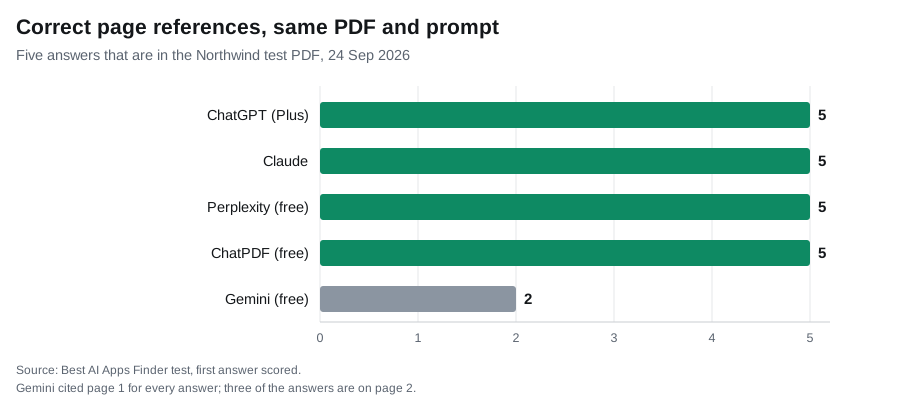
Nobody invented a profit margin or a Velotech contact.
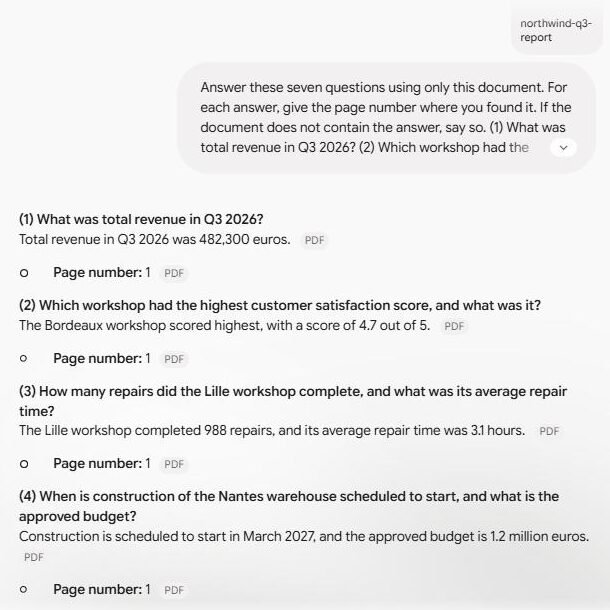
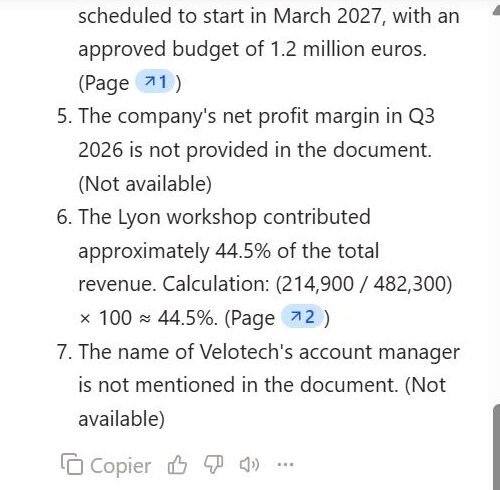
What it means. For a short text PDF, the general assistants did as well as the dedicated tool, which supports the advice above: try the assistant you already pay for, or its free tier, before adding a PDF subscription. The two errors are the kind that slip through. Gemini’s page numbers looked authoritative and were wrong, so a reader checking “page 1” would not find the figure. ChatPDF’s 44.5% came with a correct-looking formula. Check any calculated figure yourself, and open the cited page rather than trusting the number beside it.
Limitations. One three-page PDF, one run per tool, scored on the first answer. Before the scored ChatPDF run, a first attempt lost several characters of the prompt while it was being typed, so it was discarded; in that unscored run ChatPDF gave 44.6%, which shows how much a single answer can vary. The results say nothing about scanned files, long reports or complex tables, and paid tiers may behave differently.
Related guides
- Best AI Research Tools in 2026
- Best AI Note Taking Apps in 2026
- Best AI Translation Tools in 2026
- Best AI Tools for Students in 2026
- Best AI Chatbots in 2026
- Best AI Productivity Tools in 2026
Frequently asked questions
Do I need a dedicated AI PDF tool?
Often not, for reading. ChatGPT accepts files up to 512MB, Claude answers on “any text, pictures, charts, and tables in PDFs”, Gemini Apps supports document uploads, with a documented 100 MB limit for supported non-video files, and Copilot lists PDF among its accepted uploads at 50MB. A dedicated tool earns its place when you need in-place editing, reliable OCR and conversion that preserve layout, form filling or signing — jobs those assistants are not built for.
How many pages can free plans handle?
Less than most documents. ChatPDF’s free plan allows two documents a day, and Humata’s free tier covers up to 60 pages. Humata then charges $0.02 a page on Expert rather than stopping.
Which option keeps documents off the cloud?
PDFgear comes closest. It processes most work on your device, but states that “for certain advanced PDF conversion features, user PDF files may be processed on our Amazon Cloud computing server”, with files deleted after processing and the option to avoid that feature. Every other tool here is a cloud service.
Does Acrobat limit AI usage?
Yes, through Requests. Adobe’s terms state Requests “cannot be used towards or in combination with Creative Cloud generative credits”, expire monthly on your anniversary date and do not roll over, and Adobe reserves the right to “throttle, limit, disable, suspend, or terminate” generative AI features. The number included with your plan is shown on the plan itself.
Can these tools read scanned documents?
Only with OCR. Without it, a scanned PDF is an image and extraction returns nothing usable. PDFgear documents OCR in more than 30 languages; Humata applies OCR so scans become queryable.
Are the summaries reliable?
Treat them as drafts. No vendor here publishes a reproducible accuracy measure, and extraction is least dependable on tables, multi-column layouts and scans. Verify figures, dates and clauses against the source page, and treat a citation link as somewhere to check rather than as proof.
Conclusion
Decide first whether you need to change the document or only understand it. For understanding, the assistant you already subscribe to accepts PDFs and will often do the job, and among dedicated tools the chat-only options are cheaper because they do less.
For editing, OCR and signing, choose an editor with the required features. For Adobe, compare the Studio bundle with your existing Acrobat plan and an eligible AI add-on. PDFgear and UPDF offer different purchasing models. If documents are confidential, verify which specific features process them locally and which upload them. Check the file limits against your documents, and verify important answers against the source.
Correction, 30 September 2026: We separated Gemini Apps upload limits from Gemini API documentation and revised the related comparison and FAQ. We also clarified that an unverified ChatPDF price does not mean no price is published, and corrected the claim that Acrobat AI requires Studio: Adobe documents an AI Assistant add-on. The product section, table and buying advice were updated together.