
Subtitle tools are sold as one category and are really four. Some are browser video editors that happen to caption well. Some are caption specialists built for short-form social video. Some are transcription platforms where a subtitle file is one export option. And one pairs AI with human review for work that has to clear a compliance standard.
Once you have picked the right kind, one mechanic decides the bill, and it is rarely the one people check: what the plan actually meters. On VEED, subtitles are unlimited on paid plans and translation eats the allowance. On Kapwing, export minutes and subtitle minutes are two separate limits. Maestra sells four different meters as four different subscriptions. Getting that wrong is what produces the surprise upgrade.
Seven tools below. Every figure is linked to the vendor page that publishes it, and where a vendor does not publish something, this guide says so rather than filling the gap.
Four kinds of tool
Browser video editors such as VEED and Kapwing generate captions inside a full editing timeline. You get styling, trimming and export in one place, at the cost of watermarks and resolution caps on free plans.
Caption specialists such as Submagic and CapCut are built around short-form video: animated word-by-word captions, emoji, highlighting. They do one job for one format.
Transcription platforms such as Happy Scribe and Maestra start from the transcript. Subtitles are an export alongside DOCX and PDF, and their strength is language coverage and file-format flexibility rather than video styling.
Human-in-the-loop services such as Rev add professional review on top of AI output. Slower and considerably more expensive, and the right answer when captions must clear a legal standard.
Burned-in captions or a subtitle file?
This decision determines which tool suits you, and it is worth making before you compare features.
Burned-in captions are rendered permanently into the video pixels. They always display, they cannot be switched off, and they cannot be edited later without re-exporting. This is what short-form social video generally requires, because styled captions are part of the visual language of the format.
Sidecar subtitle files, usually SRT or VTT, sit alongside the video. Viewers can turn them off, platforms can index them, and you can translate or correct them without touching the video. If the same video will be reused across platforms or translated later, a file is the flexible choice.
A related format worth knowing is SDH, subtitles for the deaf and hard of hearing. Happy Scribe runs a dedicated SDH subtitling service and describes what the format adds: “speaker identification, sound effects, and musical cues”. It sells this as an “AI+expert” service — AI drafts, then linguists review — and publishes no price for it on that page.
Some tools do only one of these. Caption specialists burn in. Transcription platforms produce files. The browser editors do both, which is why they suit people publishing to several places.
What each plan actually meters
Free plans here rarely restrict features. They restrict output, and the paid plans then meter something specific. The four patterns below are all published, and they are not interchangeable.
VEED meters translation, not subtitling. Its pricing FAQ states that “All paid plans include unlimited subtitle generation, subject to a fair use limit of 50 hours per month”, while “Translations are minute-based and count toward your plan’s allowance.” Its own worked example is the clearest statement of the rule anywhere in this category: subtitling a 30-minute video uses no translation allowance at all, translating it into Spanish uses 30 minutes, and a second language uses another 30.
Kapwing meters two things at once. Its free plan allows “Unlimited exports with a watermark” at 720p, but caps exports at 4 minutes per video and 30 minutes of export per month, while auto-subtitling gets a separate allowance of up to 50 minutes. Hitting one limit does not tell you where you stand on the other.
Happy Scribe meters one shared pool. Its plans are sold as minutes “of AI Transcription, Subtitling, and Translation per month” — one allowance covering all three, so translating heavily reduces how much you can transcribe.
Maestra meters four times over. Its pricing page splits into separate plan ladders for Transcription, Subtitles, Voiceover and Real-Time captioning. A workflow that needs two of those needs two subscriptions.
The practical consequence: before subscribing anywhere, work out which of subtitling, translation and export your own workflow consumes most, then read the plan against that rather than against the headline minute count.
Browser video editors
1. VEED.io
VEED is a widely used browser editor with a strong captioning workflow: auto-subtitles, styling, translation, and export as either a burned-in video or a subtitle file.
Its published ladder is credit-based. Creator is $10 per user per month billed yearly as $116, with 6,000 credits, unlimited auto subtitles and — the detail that tells you what the free tier does — “No watermark” listed as a paid feature. Pro is $21 per user per month, billed yearly as $257, with 30,000 credits and translation into “50+ Languages”. Studio is $35 per user per month, billed yearly as $414, with 180,000 credits. Enterprise is custom.
Note where translation sits: it is a Pro feature, not a Creator one. If multilingual output is the reason you are looking at VEED, the entry plan is not the plan.
Suits: people who want editing, captioning and export in one browser tab, and who will pay to lose the watermark.
2. Kapwing
Kapwing is the collaboration-oriented alternative, built around real-time team editing with caption templates tuned for vertical video, and it advertises automatic subtitle translation into “over 60 languages”.
Its free plan is unusually explicit about its limits, listed above: watermarked exports, 720p, 4-minute videos, 30 export minutes a month and up to 50 minutes of auto-subtitling. Pro is $24 a month, or $16 a month billed annually at $192 a year, with 1,000 credits a month. Business is $64 a month, or $50 billed annually at $600 a year, with 4,000 credits. Enterprise is custom.
Suits: teams reviewing and editing captions together, where the collaboration matters as much as the output.
Caption specialists for short-form
3. CapCut
CapCut is the default for TikTok, Reels and Shorts, and the practical reason is that it runs free on mobile and desktop and produces the animated caption styles short-form audiences expect. Its own web app lists caption generation with support for more than 20 languages, and runs a credit system that includes a free daily allowance alongside a paid upgrade path.
This guide could not find a public CapCut pricing page to read, so it quotes no plan prices. Check the upgrade screen inside the app for current rates.
Its limitation is scope. It is a short-form video editor first, so language coverage and subtitle-file export are narrower than the transcription platforms, and it is not the tool for a 40-minute interview.
4. Submagic
Submagic does one thing: styled captions for short vertical video, with word-by-word highlighting, emoji and automatic emphasis. For creators producing clips at volume, that focus is the appeal, and its pricing page lists more than 40 supported languages.
Its plans meter videos rather than minutes, and each tier also raises the maximum clip length and export quality. Starter is $19 a month, or $12 billed yearly, giving 45 credits or 15 videos a month, 2-minute maximum duration and 1080p at 30fps. Pro is $39, or $23 yearly, giving 120 credits or 40 videos, 5-minute duration and 1080p and 2K. Business is $69, or $41 yearly, giving 300 credits or 100 videos, 30-minute duration and 4K at 60fps. A custom plan sits above.
Note that no free plan appears on Submagic’s pricing page. What it offers is a no-credit-card start, which is not the same thing.
Suits: creators publishing short clips at volume who want caption styling handled in one step.
Transcription platforms
5. Happy Scribe
Happy Scribe approaches this from transcription rather than video, and its export flexibility is the strongest here.
Its pricing page runs a free tier giving a “10-minute free trial of AI Transcription, Subtitling and Translation”, then Basic at $17 a month or $8.50 billed annually with 120 minutes a month; Pro at $29, or $19 annually, with 600 minutes; and Business at $89, or $59 annually, with 6,000 minutes. Enterprise is quoted by sales.
Two details matter more than the price. Language coverage is three different numbers: AI transcription and subtitles cover 150-plus languages, AI translation 80-plus, and human proofreading 65-plus. And export formats are tiered: Free gives TXT and SRT, Basic adds PDF and DOCX, while VTT, STL, XML, FCPXML, EDL, HTML and MP4 arrive with Pro and Business as part of “All formats (15+)”. If you need VTT specifically, Basic is not enough.
Human proofreading is charged on top of the subscription, published “From $2.00/min”, or from $1.90 a minute on Business.
Suits: multilingual work, accessibility deliverables and anyone who needs a specific subtitle file format.
6. Maestra
Maestra covers transcription, subtitles, translation and AI dubbing, advertising transcription in 125-plus languages, with live captioning for streaming workflows.
Its structure is the thing to understand before comparing it to anything else. Pay-as-you-go is $12 per 60 credits across all services. Subscriptions are then sold per service: Transcription runs Lite at $23 a month for 180 minutes, Basic at $39 for 360, Premium at $79 for 900; Subtitles runs Basic at $39 for 360 subtitle minutes or 180 translation minutes, Premium at $79, Business at $159; Voiceover and Real-Time captioning have their own ladders again, from $39 up to $359. The rates above are the annual-billing figures the page presents with a 20% saving.
Note that the Subtitles plans price subtitling and translation at different rates from the same allowance — 360 minutes of subtitles or 180 of translation on Basic — so translation costs double.
Suits: multilingual teams who need one specific service heavily, rather than a bit of everything.
Human review
7. Rev
Rev has repositioned. Its pricing page is now headed “Pricing Plans For Legal And Investigative Work”, built around an investigative platform with à la carte human services attached. That framing matters: it is no longer a general captioning tool.
Contrary to its older reputation, Rev does have a free plan, giving “45 AI transcription & caption minutes/month (English only)”. Above it, Essentials is $25.49 per seat per month, or $305.90 billed annually with two months free, including 5,000 AI minutes per seat per month in English and Spanish. Pro is $47.99 per seat per month, or $575.88 annually, including 10,000 verbatim AI minutes per seat in “37+ languages, including Spanglish”. Unlimited is custom. Minutes are pooled at account level rather than locked per seat.
The human services are where the cost sits: human transcription at $1.99 a minute and human captions from $1.99 a minute, with subscriber discounts of 10% on annual Essentials and 15% on annual Pro. Global Subtitles run $6.49 to $15.99 a minute and are “Available in 17 languages” — far narrower than the transcription platforms above, and worth checking before assuming Rev covers your language.
Suits: legal and investigative work, and any deliverable where a human has to sign off on the transcript.
Comparison
Every figure comes from the vendor’s own pricing page, linked above. Annual-billing rates are shown where the vendor publishes both.
| Tool | Type | Free tier | Paid entry | What it meters | Languages published |
|---|---|---|---|---|---|
| VEED.io | Browser editor | Watermarked; “No watermark” is a paid feature | Creator $10/user/mo yearly | Translation minutes; subtitles unlimited on paid | Translate to 50+ |
| Kapwing | Browser editor | Watermark, 720p, 4-min videos, 30 export min/mo | Pro $16/mo annual | Export minutes and subtitle minutes | Translate to 60+ |
| CapCut | Short-form editor | Free daily credits | No public pricing page found | Credits | Captions in 20+ |
| Submagic | Caption specialist | None published; no card to start | Starter $12/mo yearly | Videos per month; clip length | 40+ |
| Happy Scribe | Transcription | 10-minute trial | Basic $8.50/mo annual | One pool: transcription + subtitling + translation | 150+ AI subs; 80+ translation |
| Maestra | Transcription + dubbing | PAYG $12 per 60 credits | Transcription Lite $23/mo | Four separate subscriptions | 125+ transcription |
| Rev | AI + human review | 45 AI min/mo, English only | Essentials $25.49/seat/mo | AI minutes pooled per account | 37+ AI; 17 human subtitles |
Deliberately absent is an accuracy score. Vendors publish accuracy percentages measured on their own material under conditions they do not disclose, and those figures do not predict performance on your audio, your accents or your terminology.
Accessibility and compliance
If captions are being added for accessibility rather than engagement, the requirements are different and stricter.
Accessibility work generally expects captions to convey more than dialogue. Happy Scribe’s own description of SDH is a useful definition of the gap: “speaker identification, sound effects, and musical cues” alongside the spoken words. A plain auto-generated transcript is not automatically an accessible caption track.
Note also that both vendors here offering human review sell it as a service on top of AI output rather than as a plan feature — Happy Scribe from $2.00 a minute, Rev at $1.99 a minute for transcription and captions. Where captions must satisfy a legal, educational or broadcast obligation, that is the line item to budget for rather than discover late. Requirements vary by country, sector and platform, so this is general information rather than legal advice.
How to evaluate subtitle results before publishing
A feature list is useful, but the final choice should rest on a short test with your own footage. Upload a clip of the kind of speech you publish most often: a fast-paced tutorial, an interview with more than one speaker, a product demo, or a short social video.
Check the transcript, not only the captions
Read the transcript from start to finish and pay attention to names, product terms, numbers, acronyms and words that sound alike. Caption quality is not only about the right words; it is also about line breaks placed where viewers can read them comfortably. Plan time for a final proofread, especially with technical language or several speakers.
Match the export to the place you publish
Decide in advance whether you need captions burned into the video, a separate subtitle file, or both — and check the format specifically, because Happy Scribe puts SRT on its entry tier and VTT two tiers higher. For short-form clips, preview captions on a phone as well as a desktop screen.
Choose by workflow
- Short social videos: prioritise a fast review process, readable styling, and an export that fits your publishing routine.
- Interviews and podcasts: focus on speaker labels, editing controls, and a simple way to correct longer transcripts.
- Multilingual videos: test one target language before committing, and have a fluent reviewer check the final wording.
- Client or team work: confirm who can review, edit and approve captions before the video is exported.
How to choose
You publish short vertical video: CapCut costs nothing to start; Submagic from $12 a month billed yearly if styling at volume matters more, remembering its 2-minute clip limit on Starter.
You need editing and captions together: a browser editor, budgeting for a paid plan since both watermark their free output. VEED Creator at $10 is the cheapest way to lose the watermark.
You need translated subtitles: check where translation sits in the meter. It is a Pro feature at VEED, a doubled rate at Maestra, and a shared pool at Happy Scribe.
You need a specific subtitle file format: Happy Scribe, checking the tier — SRT on Basic, VTT on Pro.
You need SDH or accessibility sign-off: Happy Scribe’s SDH service, or Rev where a human has to certify the result.
You work in many languages: compare the specific number for the specific service, because they differ inside the same product — Happy Scribe publishes 150+, 80+ and 65+ for three different things, and Rev publishes 37+ for AI and 17 for human subtitles.
For translating subtitle text itself rather than generating it, our guide to AI translation tools covers dedicated options.
What we found in our 24 September 2026 test
What we tested. We made a 42-second test clip ourselves so the correct transcript is known exactly: a fictional community notice, 108 words, containing a place name (“Harbor Lane”), a hyphenated surname (“Priya Okonkwo-Hale”), a date, two times, two sums of money and a phone number. The speech was generated offline with the open-source SVOX Pico voice, and the clip is available to download so you can run the same test. The script is reproduced at the end of this section.
Tools we tried, all without paying or signing in:
- Maestra (free subtitle generator page, “No signup”): transcript on screen in about 40 seconds, split into 13 timed lines.
- VEED (free auto-subtitle page): accepted the upload, then stayed on “Creating your project…” for more than two minutes without a result. Not scored.
- Kapwing: the subtitle editor opened without an account, but adding the clip brought up a “Sign in to continue” window. Not tested.
Result. Maestra got 108 of 109 words right (word error rate 0.9%, counting the hyphenated surname as two words). The single error was the first proper noun: “Harbor Lane” became “Harper Lane”. The harder name, “Priya Okonkwo-Hale”, came out exactly, hyphen included, and every number was right, written out as spoken (“two dollars and fifty cents”, “five five five zero one nine eight”).
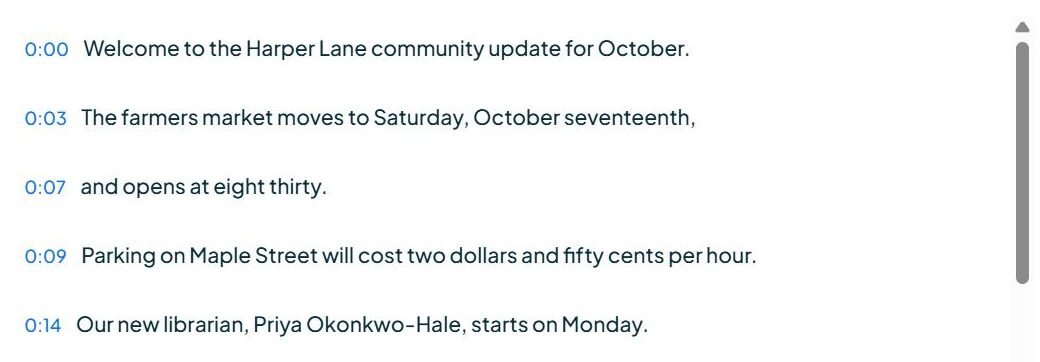
The catch is the file. The page showed the timed transcript, but the download buttons said “Sign up to download”, so without an account you get something to read, not an SRT or VTT file to publish. That is the distinction this guide draws between captions you can see and a subtitle file you can use.
Limitations. A clean synthetic voice with no music, accent or crosstalk is close to the easiest case for speech recognition, so a near-perfect score here is a minimum bar, not a prediction for a noisy interview. One clip, one run. Two of the three tools could not be scored for reasons unrelated to accuracy, which is itself a practical finding: test the free tier with your own file before you plan a workflow around it. Spoken numbers come back as words, so budget time to reformat prices, dates and phone numbers before publishing.
Test script. “Welcome to the Harbor Lane community update for October. The farmers market moves to Saturday, October seventeenth, and opens at eight thirty. Parking on Maple Street will cost two dollars and fifty cents per hour. Our new librarian, Priya Okonkwo-Hale, starts on Monday. She plans to run a coding club for teenagers every Thursday at four fifteen. The council approved a budget of one point two million dollars for the new cycle lane. Construction begins in March and should take eleven weeks. If you have questions, call the town office on five five five, zero one nine eight. Thank you for listening, and see you at the market.”
Related guides
- Best AI Video Generators in 2026
- Best AI Voice Generators in 2026
- Best AI Translation Tools in 2026
- Best AI Note Taking Apps in 2026
- Best AI Voice Cloning Tools in 2026
Frequently asked questions
Which subtitle generators are free?
Rev publishes a free plan with 45 AI transcription and caption minutes a month in English only, and Happy Scribe gives a 10-minute free trial. Kapwing’s free plan allows unlimited watermarked exports at 720p within a 30-minute monthly export cap. CapCut runs free daily credits. Submagic publishes no free plan.
Can I get a subtitle file rather than captions burned into the video?
Yes, from the browser editors and the transcription platforms, typically as SRT or VTT. Check the tier: Happy Scribe includes SRT on Free and Basic, but VTT only from Pro upward.
Is subtitle translation included on free plans?
Frequently not, and on VEED it is not even on the entry paid plan — translation into 50-plus languages starts at Pro. VEED also states that translations are minute-based and count toward the plan allowance while subtitling itself is unlimited on paid plans, subject to a 50-hour monthly fair-use limit.
Why do language counts differ so much between tools?
Because they measure different services. Happy Scribe publishes 150-plus languages for AI subtitles, 80-plus for AI translation and 65-plus for human proofreading. Rev publishes 37-plus for AI transcription and 17 for its human Global Subtitles. Compare the number attached to the service you actually need.
How accurate are AI subtitles?
Vendors publish accuracy figures measured on their own material under conditions they do not disclose, so those numbers do not predict results on your audio. Accuracy drops with background noise, overlapping speakers, accents and technical terminology. Test with your own footage.
What is SDH and do I need it?
SDH means subtitles for the deaf and hard of hearing. Happy Scribe describes the format as adding “speaker identification, sound effects, and musical cues” to the dialogue. If captions are for accessibility rather than engagement, that additional information is usually expected.
What does human review cost?
Happy Scribe publishes human proofreading from $2.00 a minute, or from $1.90 on its Business plan. Rev publishes human transcription and human captions at $1.99 a minute, with subscriber discounts, and Global Subtitles at $6.49 to $15.99 a minute depending on language.
Conclusion
Decide first what kind of tool you need. Short-form creators want a caption specialist and can start without paying. People editing and publishing in one place want a browser editor and should expect to pay, because both watermark their free output. Multilingual work belongs on a transcription platform. Legal and compliance work needs human review, priced per minute on top of any subscription.
Then read the meter rather than the headline. Whether a plan counts subtitle minutes, translation minutes, export minutes, videos, credits or seats is published on every page linked above, and it varies more between these tools than the prices do. That single check causes more unexpected upgrades in this category than any feature gap.